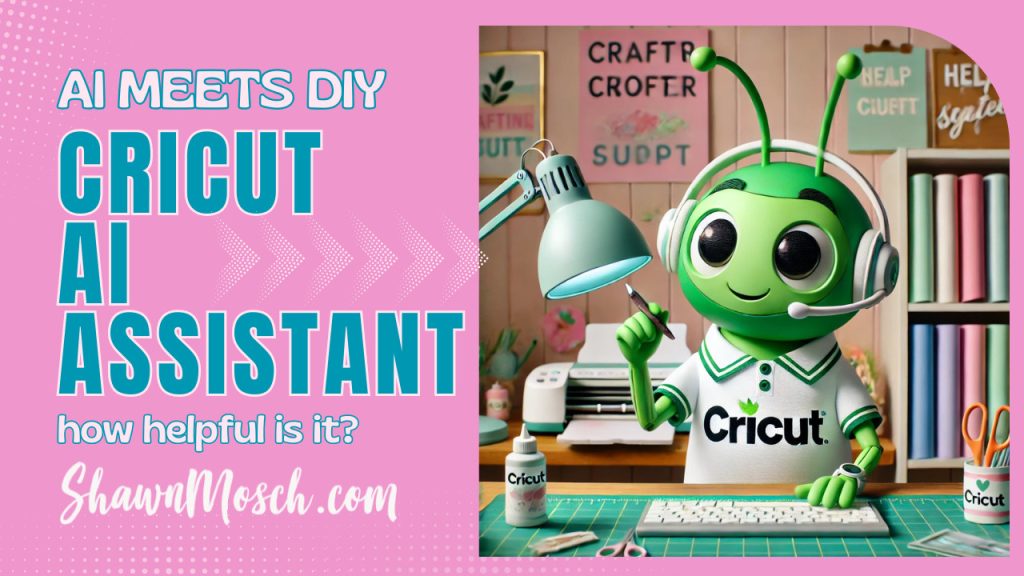

Have you seen or used the Cricut AI Assistant tool yet? It is slowly rolling out at the end of 2024. I already have made plans to ask this new assistant all of the various questions I see people asking online along with some of the most debated topics in the Cricut world.
By the way, this post contains Affiliate Links to companies I have partnered with, such as Amazon. As an Amazon Associate I earn from qualifying purchases. You can think of affiliate links like tipping your waitress, only it does not cost you anything extra! Thank you for shopping with my links!
What is Cricut AI Assistant?
If you know me, you know I love an analogy or real life comarision to help people remember things. The best way I can think of to describe the Cricut AI Assistant tool is to compare it to Clippy from Microsoft Office. Clippy was a virtural assistant back in the late 1990’s and early 2000’s that offered help and suggestions for to help us learn to use Microsoft Office software.
On the surface the Cricut AI Assistant tool sounds like a great idea. I like to describe it like having a virtual help desk right at your fingertips! If you have a question, you can type it into the AI assistant tool and it will give you an answer right inside of the Design Space platform. You would think that this would give you the most accurate information out there on the topic you type in, which would mean the end of content creators like me who make tutorials and videos to explain the software to people.
That might not be the case.
Are the Cricut AI Assitant Answer Helpful?
Before the Cricut AI Assistant was even lanched I was watching the announcement video from Cricut and I feel that the answer the Cricut AI Assistant gave will just cause MORE questions, problems and frustration for some users. Let me explain why I feel this way.
In the video, the question they asked the Cricut AI Assistant was “Why do my images/elements move around when I hit MAKE?” The answer does not tell people WHY they move, but it tells them to select everything and click Attach. I feel that Cricut is missing a huge opportunity here and they could explain the WHY behind their features and functions, which would help people to understand them. If you understand the WHY, it helps you remember what to do and what not to do.
Now, back to the question “Why do my images move around when I hit MAKE?”
Shawn’s Answer: Back when the first Cricut machines came out there was a button called Material Saver that would push everything to the upper left corner and move things so that you used the least amount of material as possible when cutting your designs. Back then, most people were using the Cricut for scrapbooking and card making, so the exact placement of the design on the cutting mat was not important since we were going to take all of the elements off of the mat one at a time and place them on the scrapbook page/card.
If you turned the Material Saver function OFF then everything would cut exactly like as you had them on the design canvas. When Cricut went to the Design Space software, they basically left the Material Saver button on by default.
The problem with the Cricut AI Assistant Answer: If the Cricut user has a design that is all one color and they want that to cut in the exact same placement on the cutting mat as they have it designed on the Design Space canvas, then yes, the AI Assistant answer will resolve their problem. But what if the design has multiple colors and layers in it?
If you select everything with a multi colored design, as the AI Assistant instructs you to, then everything in your design will change to the same color. I am guessing that is not what you wanted it to do, right? So then this Cricut answer will just lead to more confusion and frustration.
The BETTER answer: I feel that the better answer to “Why do my images/elements move around when I hit MAKE?” would be to not only explain the WHY, like I did above. Then give the answer that the Cricut AI Assitant gave, but then after that it should address the issue of multi color designs. If the elements in the design were on different layers/different colors. For those you need to Attach by color. I have done a video on that topic HERE.
Testing Cricut AI Assistant
Those of you that know me know I love to simplify your crafting experience by explaining things in a way that helps you learn WHY things happen a certian way. In some of my tutorials and videos I even show you the mistakes that some people make and how to avoid them.
Because of this, when the Cricut AI Assistant tool does come out and is available I will be testing ALL of the most common questions I see and the answers it gives. Make sure to follow me on social media and join my newsletter to get the most accurate information!